HBM | March 3, 2026

Why Office Printer Setup Feels Harder Now
Setting up a printer at home can be simple. Plug it in, connect to Wi Fi, and print. Office setups are different. You are dealing with multiple users, shared devices, network rules, and security settings designed to protect the business.
That’s why printer setup can feel surprisingly complicated in a workplace. A printer driver might require admin approval. A device may need a reserved IP address to stay reliable. Default settings like duplex printing and scan destinations matter because they impact cost, privacy, and productivity every day.
This guide is a Windows-friendly checklist for how to set up a network printer in an office. It covers the decisions that prevent repeat issues, the setup steps that keep things stable, and the most common ways to add a network printer for multiple users.
Before You Start: 5 decisions that prevent headaches
Before anyone installs drivers or adds the printer to a computer, a few quick choices can save hours later.
- USB or network printer setup: For most offices, a network setup is the better long-term approach. A USB printer tied to one workstation becomes a bottleneck and a support headache when multiple people need access.
- Shared device or dedicated printer: Decide whether this is a shared office printer for a team or a dedicated device for one role. Shared printers usually need stronger access controls and consistent defaults to avoid wasted paper and misplaced documents.
- Print server or direct IP printing: This is a big one. A print server is best when you need consistency across users, like the same driver, the same finishing options, and the same default settings. Direct IP printing is faster to set up, but you can lose presets, and it can be harder to manage at scale. We will cover both approaches below, including how to add a printer by IP address when needed.
- Who manages drivers and updates: In many offices, standard users cannot install printer drivers. That is intentional. Decide who will handle driver deployment and updates so users are not blocked by admin prompts later.
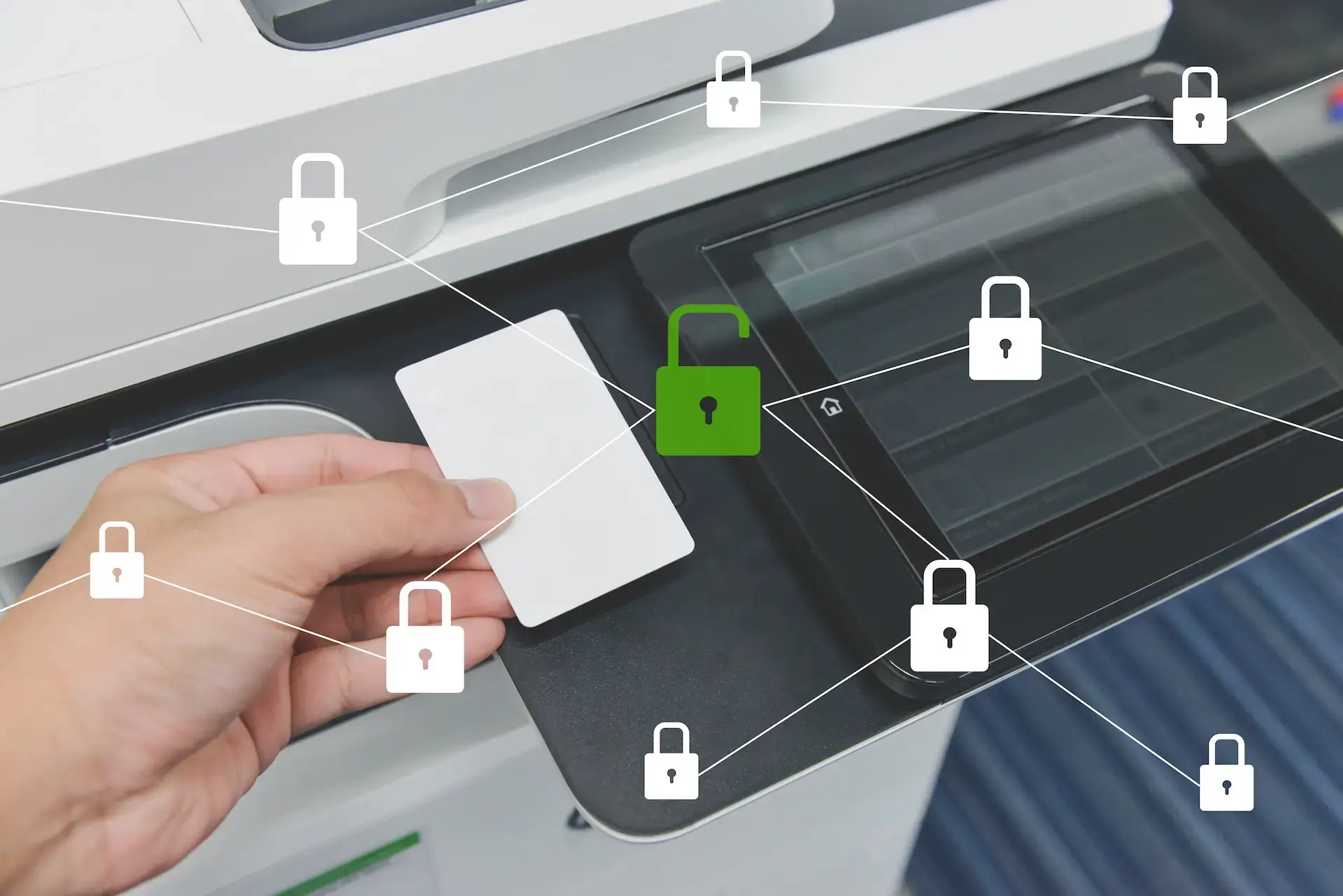
- What level of security is required: If you print invoices, HR paperwork, patient documents, or legal files, basic setup is not enough. You may need secure print release, user authentication, or access restrictions so sensitive documents do not sit in an output tray.
Office Printer Setup Checklist
Once you have the basics decided, use this checklist to set up the printer in a way that stays reliable for multiple users.
1. Confirm location and network connection
Place the device where it will live long term, then confirm it has a stable network connection. Wired Ethernet is usually best for shared printers. Wi Fi can work, but it is more likely to cause intermittent issues in busy office environments.
2. Assign a consistent IP address
For office use, avoid an IP address that changes unexpectedly. A static IP address or a DHCP reservation helps prevent the “printer is offline” problem after network changes or reboots. This also makes it easier later if you need to add a printer by IP address.
3. Name the printer in a consistent way
Use a naming format that makes sense for staff and IT, such as Location-Department-Model. Clear naming helps when people need to choose the right device from a long list of printers.
4. Set defaults that reduce cost and confusion
Default settings matter more than most offices realize. Set the printer to duplex printing when appropriate, choose black and white by default for general printing, and confirm paper sizes and tray assignments. These defaults reduce waste and prevent constant “why did it print like that” questions.
5. Configure scan destinations if the device supports scanning
If the printer is an MFP, set up scan destinations that match how the office works, such as scan to email, scan to folder, or scan to a shared platform. This is also a good time to standardize file naming conventions, so scanned documents don’t become a mess.
6. Lock down admin access and basic security settings
Change default admin credentials, restrict who can modify settings, and confirm basic security options are enabled. If your office handles sensitive documents, it may also be worth planning for secure print release so documents are not left sitting in output trays.
7. Test like a real user
Run a print test and a scan test from a normal workstation, not just the admin machine. This catches permission issues early.
How to Add a Network Printer for Multiple Users
After the device is on the network, the next question is how to connect it to everyone who needs it. In most offices, there are two common approaches.
Option A: Print server setup (best for consistency)
A print server approach is ideal when you want the same experience for every user. It is easier to standardize drivers, keep the same finishing options, and push the same default settings across the office.
This is typically the better choice if you need to:
- Add a network printer for multiple users across a team
- Keep the same default settings for everyone
- Reduce one-off installs and support tickets
- Install a printer for all users on shared workstations
In many environments, users also cannot install drivers themselves, so a centralized deployment method prevents constant admin prompts.
Option B: Add printer by IP address (fast, but less standardized)
Direct IP setup is often the fastest option for a single computer or a quick workaround. You can add a printer by IP address when the print server is not available or when a workstation needs a direct connection.
The tradeoff is that you may lose some presets and finishing options, and default settings may not match what the office expects. Direct IP installs can also become harder to manage if the office grows and you need to support many workstations.
A good rule of thumb is this. Use a print server or managed deployment when consistency matters. Use IP printing when speed matters and the setup is limited to a small number of users.
Why Windows Asks for Admin Permissions Now
In many offices, Windows will prompt for admin approval when someone tries to add a network printer. This usually happens because installing printer drivers is treated like a security-sensitive action. Drivers run at a high level on a computer, so organizations often restrict installs to IT or admins to reduce risk.
What this means in practice is simple. If users are getting blocked, it is usually not a printer problem. It is a permissions and driver deployment problem. The cleanest fix is to have an admin deploy the approved driver once, then connect users to the printer through a standard method, such as a print server, so they are not repeatedly asked for admin access.
Common Problems and Quick Fixes
- The printer shows offline: Start with the basics. Confirm the device is powered on and connected to the network. If the office relies on IP printing, check that the printer IP address has not changed. This is why a static IP or DHCP reservation helps.
- The printer installed, but features are missing: If finishing options, trays, or duplex controls are missing, it is often the wrong driver. Reinstall using the correct manufacturer driver or the same driver used across the office. This is also where print server setups tend to save time.
- Print jobs get stuck in the queue: Clear the print queue, restart the Print Spooler service, and reboot the workstation if needed. If it keeps happening on multiple computers, it is worth checking for driver conflicts or network interruptions.
- Users cannot add the printer without admin prompts: This is common in managed office environments. Instead of trying to work around it user by user, use an admin-led deployment method. That is usually the difference between a one-time setup and a recurring support issue.
- Scanning works on the device, but scan to email fails: Scan to email typically depends on email settings that can break when passwords, security policies, or mail servers change. If scanning is important for your workflow, it is worth setting scan destinations up intentionally and documenting the settings for future updates.
When to Consider Managed Print or Fleet Standardization
If setting up printers always feels like a headache, it is usually a sign that the office needs more standardization. When every workstation is installed a different way, drivers are inconsistent, and settings vary by user, small issues turn into frequent tickets. A managed approach helps keep devices configured the same way across the office, improves reliability, and makes it easier to control print costs, security settings, and ongoing support as your team grows.
Need a more consistent rollout across users and locations?
If you would rather stop troubleshooting and start standardizing, the Harris Business Machines team is here for you.
Related Articles