HBM | March 10, 2026

For busy offices, printer lines and streaks tend to show up at the worst possible time, right before a meeting, invoice run, or deadline. The good news is that most “printer printing lines” problems come from a short list of causes, and you can usually narrow it down quickly.
This guide gives you a fast way to diagnose the pattern you are seeing and choose the right fix, without guesswork.
Quick Answer: What Printer Lines Usually Mean
When a printer, copier, or multifunction device starts printing with lines, it is usually one of these issues:
- Dirty scanner glass or ADF strip (common for lines on copies or scans)
- Toner, drum, or imaging wear (common on laser printers and office copiers)
- Paper or environmental problems (dusty paper, humidity, labels, envelopes)
- Settings or driver issues (often shows up on pictures, graphics, or shaded areas)
Some fixes are safe to try in-house. Others, like drum or fuser problems, are better handled by service to avoid downtime.
Step 1: Is It Printing Lines, Copying Lines, or Scanning Lines?
First, confirm where the lines are coming from. The fix changes depending on whether the issue is in the scanner area, the print engine, or your print settings.
If lines show up only on scans or copies
Most likely cause: The scanner glass or the narrow ADF strip has dust or residue.
Quick check: Scan the same page using the flatbed. If the line disappears, the feeder strip is the source, not the printer.
If lines show up on printed pages from every computer
Most likely cause: A device or consumable issue (not one user’s settings).
Common culprits:
- Toner/cartridge problems (including leaks or poor seating)
- Drum or imaging wear (laser printers and copiers)
- Rollers or transfer belt debris
- Fuser issues (often causes smearing or repeating marks)
If lines show up only when printing pictures or graphics
Most likely cause: Settings, driver options, or image handling.
Common culprits:
- Draft/economy mode, toner save, or high-speed settings
- Low resolution settings that affect photos and shading
- Printing from a browser/app that changes scaling
- Inkjet nozzle or alignment issues (most visible on photos)
Step 2: Identify the Pattern (This Tells You the Cause)
Once you know the issue is coming from printing, the pattern is your best clue.
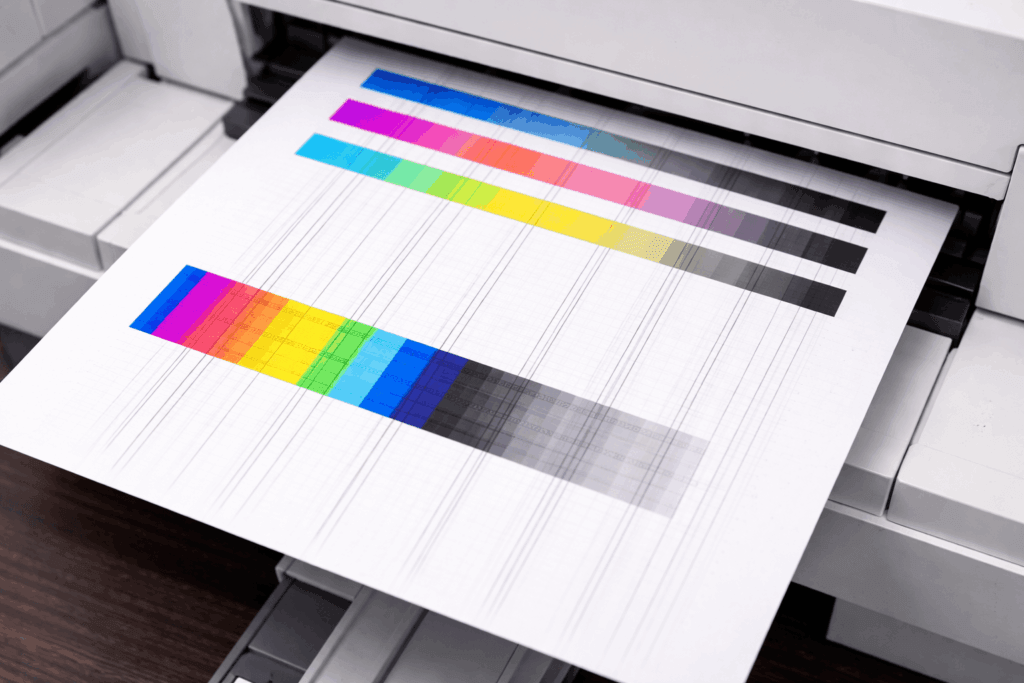
Vertical lines when printing
Often indicates a consistent issue in the print path, such as drum/imaging wear, a transfer belt issue, dirty rollers, or debris.
Quick checks:
- Print a simple one-page document. If the line is in the same spot every time, it is likely device-related.
- Print a device report/test page. If it shows the line too, it points to the device, not the file.
- Check accessible areas (tray and output area) for debris. Avoid touching internal imaging parts.
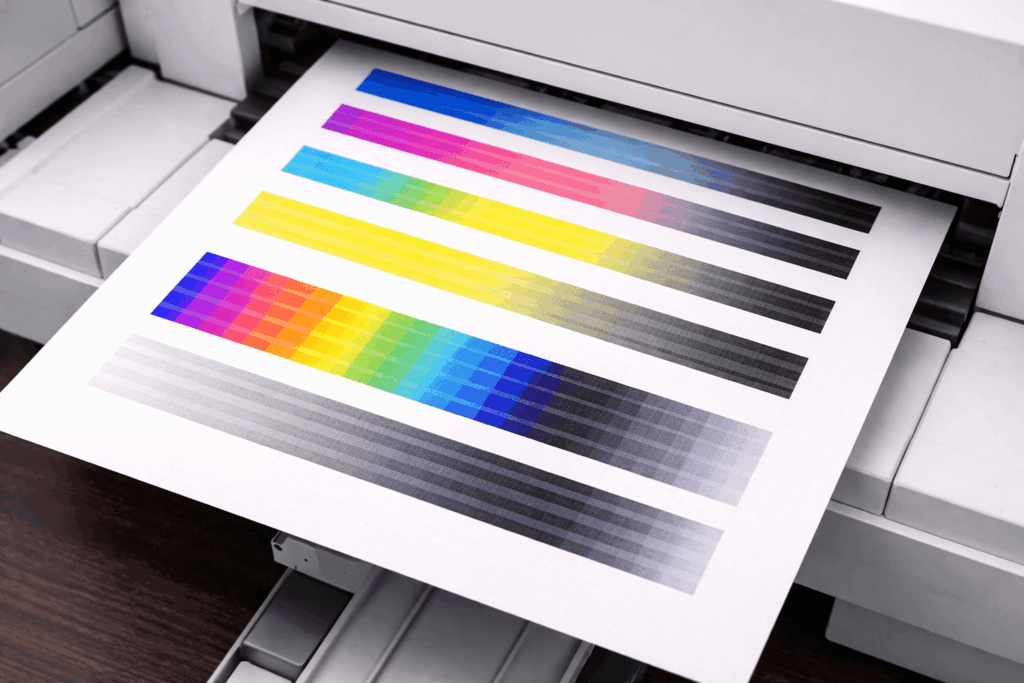
Horizontal lines or banding
Often tied to rollers, paper feed inconsistencies, fuser issues (laser/copiers), or printhead alignment/nozzle issues (inkjets).
Settings vs hardware clue:
- Mostly on photos or shaded areas: often settings or resolution.
- On everything, including plain text: more likely device or feed related.
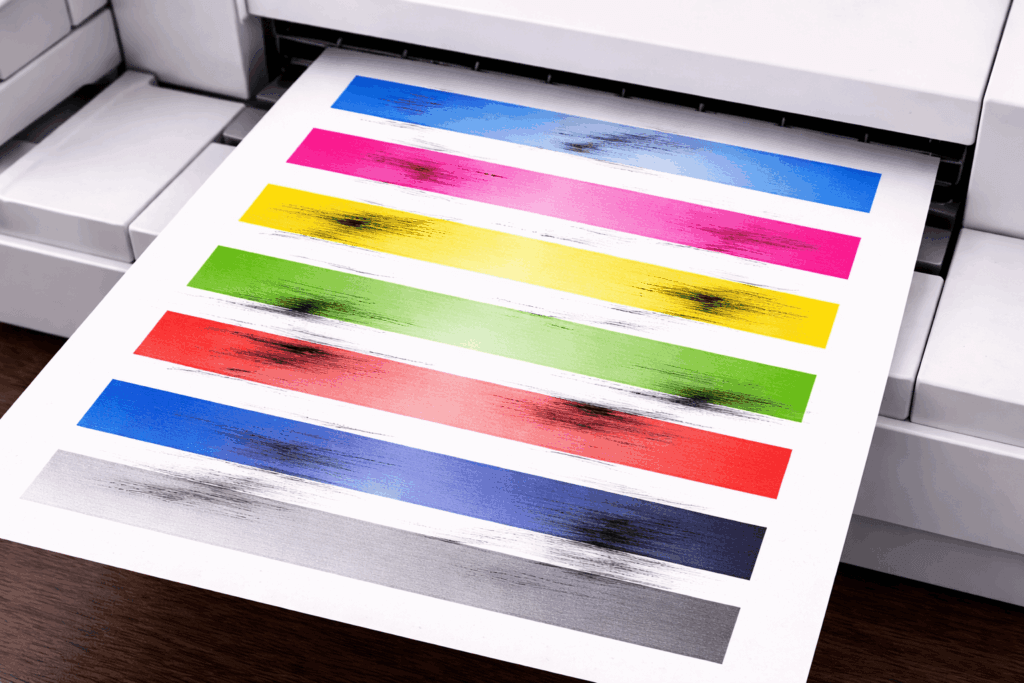
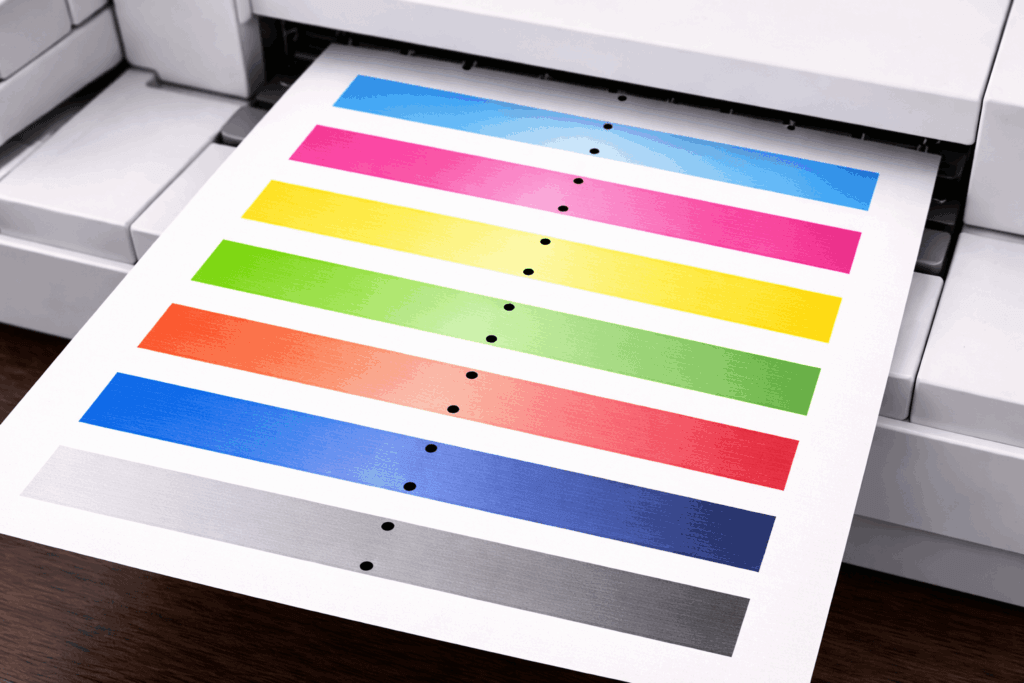
Repeating marks or streaks at regular intervals
Repeating marks often mean a rotating component (roller, drum, belt) is reapplying the same defect.
Simple clue: If the mark repeats down the page at consistent spacing, it is usually hardware or debris, not the document.
Random streaks or smudges
Random-looking streaks are often paper, environment, or buildup related.
Common triggers:
- Low-quality or dusty paper
- Humidity or paper stored in damp areas
- Labels/envelopes shedding fibers or adhesive
- Toner smearing from internal buildup
If it comes and goes, simplify first: use one paper type, a fresh ream, and basic print settings to see if the problem changes.
Step 3: Two Quick Tests That Save Time
These two checks help you isolate whether the issue is the device, the computer, or the app.
Print a test/configuration page from the device
This removes your computer from the equation.
- Line appears on the test page: likely hardware, maintenance, or consumables.
- Test page is clean: likely driver, settings, or app-related.
Print the same file from a different computer or app
This helps you spot user-specific settings or app issues.
- Only one computer: likely driver or print preferences.
- Every computer: points back to the device.
- Only one app (browser vs PDF viewer): often rendering or print settings.
Fixes That Work Most Often
Start with the most common, low-risk fixes.
Clean the glass, and ADF strip the right way
If lines show up on copies or scans, cleaning is often the solution.
Clean: flatbed glass, ADF strip, underside of feeder lid.
Avoid: paper towels (lint), harsh or oily cleaners (residue), spraying directly onto the device.
Use a microfiber cloth and a small amount of glass cleaner or isopropyl alcohol.
Replace or reseat toner (and check for leaks)
Toner is a common cause for streaking, repeating marks, or lines that started after a cartridge change.
Suspect toner if:
- It began right after replacement
- You see toner dust or speckling
- Print looks faded along with streaks
Simple steps: remove and reinstall the cartridge firmly, check for visible toner dust, and test with a spare cartridge if available.
Run the printer’s cleaning/maintenance functions
Look for options like cleaning cycle, calibration, alignment, or image quality adjustment. These can fix minor buildup and banding without parts replacement.
Try a different paper type and check storage
Paper can cause lines on paper and streaking, especially in busy offices.
- Try: a fresh ream from a different box.
- Store paper: sealed until needed, in a dry area, and avoid mixing paper types in one tray without adjusting tray settings.
What Not to Do (Common Office Mistakes That Make It Worse)
- Do not use compressed air inside the device.
- Do not touch imaging components (drums and internal surfaces).
- Do not keep re-printing repeatedly, hoping it clears.
- Do not mix paper types without updating tray settings.
When to Call for Help
If the line is consistent in the same spot after cleaning, repeats down the page, appears on device test pages, or keeps returning, it is often time for service.
If your office printer or copier is printing lines and quick fixes are not working, Harris Business Machines can help diagnose the issue and keep your devices running reliably through service support and managed print solutions.
Related Articles