HBM | March 3, 2026
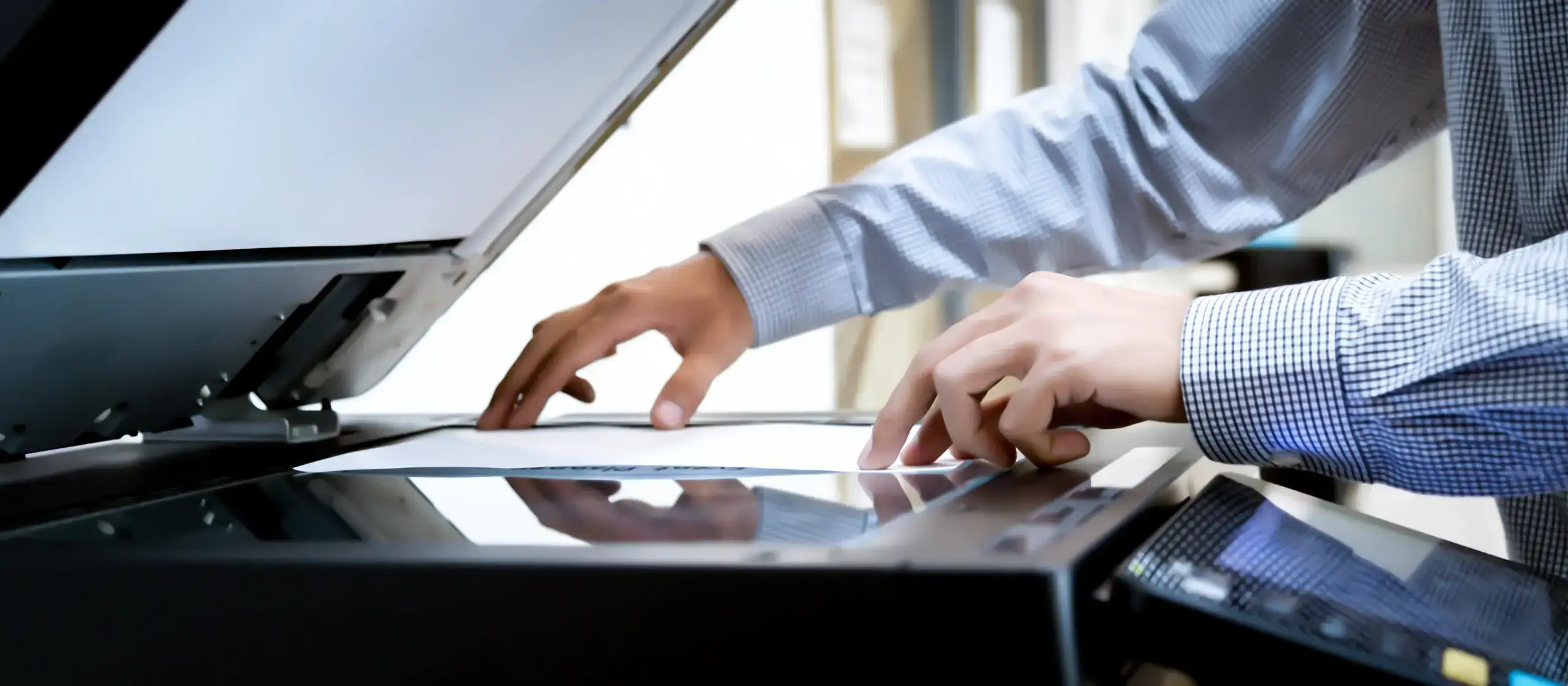
For many offices, scan to email is an everyday task. It turns paper documents into digital files and sends them straight to an inbox. When it works, it feels simple. When it does not, it can waste time, frustrate staff, and create security risks. This guide explains how scan to email works, why it sometimes fails, and when smarter document workflows make more sense for growing businesses.
The Basic Scan to Email Process
At its core, scanning to email is straightforward:
- Place your document in the feeder or on the glass.
- Select the scan function on your device.
- Choose Email as the destination.
- Enter the recipient’s email address and press Send.
This basic workflow is supported by most modern business scanners and multifunction printers, including the office equipment Harris Business Machines provides across our Copiers & Printers and Scanners offerings. Brands like Canon, Kyocera, and Konica Minolta all support scan to email as a standard business feature.
This satisfies the basic need to scan documents to email. In real office environments, though, reliability and security matter just as much as simplicity.
Why Scan to Email Stops Working
When scan to email is not working, the problem is usually not the scanner itself. It is almost always related to how the device connects to your email system. Common causes include:
- SMTP password changes. If the email account used by the copier changes its password, the device can no longer authenticate, and messages will fail.
- Multi-factor authentication requirements. Platforms like Office 365 and Google Workspace often require extra verification steps that older or improperly configured devices cannot complete.
- TLS and port requirements. Modern email servers usually require encrypted connections on specific ports. If the device firmware is outdated or misconfigured, the connection may be blocked.
- Firewall or IP restrictions. Some business networks restrict outbound traffic, which can prevent the device from reaching the email server at all.
These are the most common reasons people search for phrases like “scan to email not working,” “copier not scanning to email,” or “scan to email SMTP settings.” In many cases, the fix involves updating firmware, correcting authentication settings, or reconfiguring security policies. This is also where working with a managed IT and office technology partner like Harris Business Machines can save a lot of trial and error through our IT Services and support expertise.
Security Considerations Most Offices Overlook
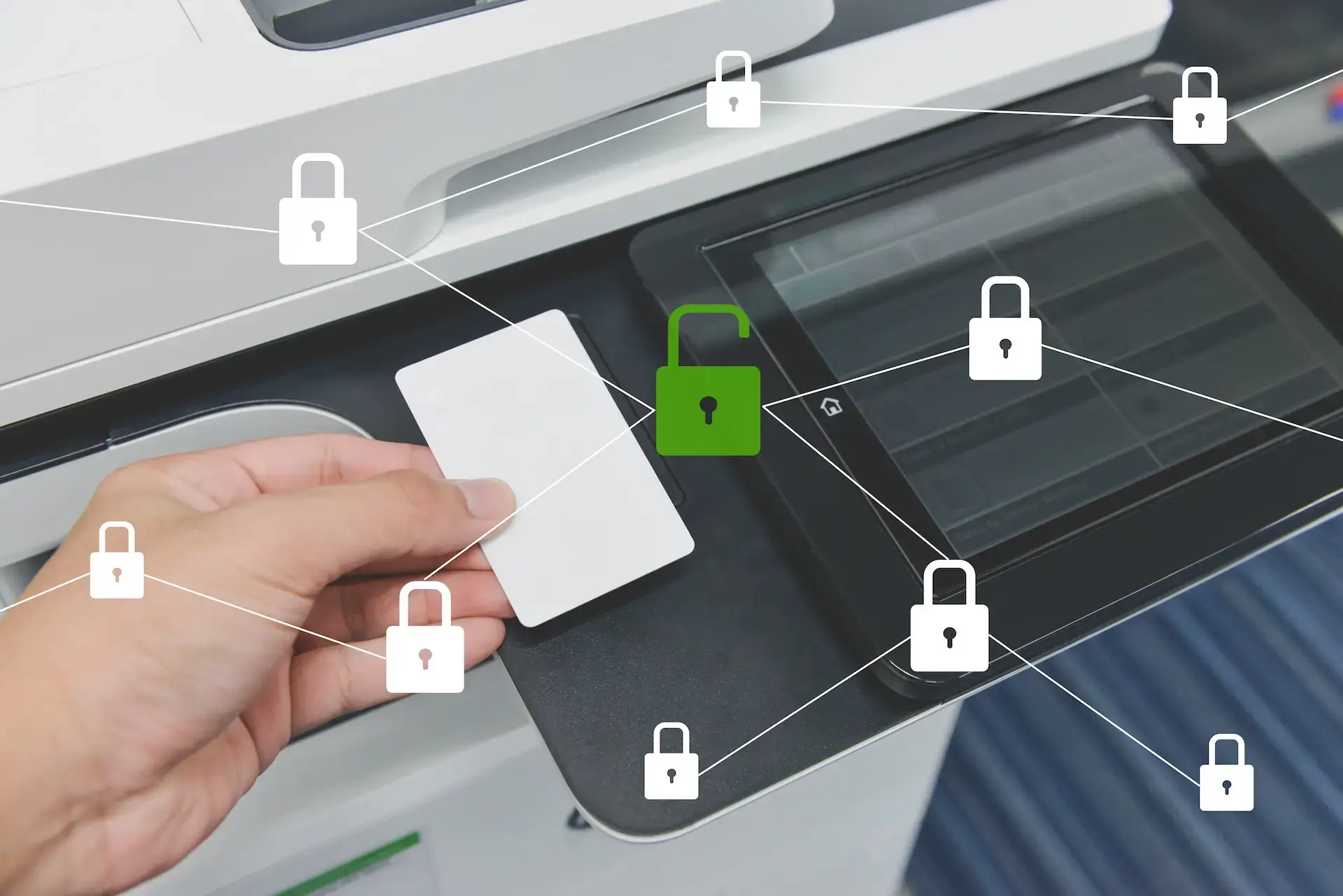
Scan to email is convenient, but it is not designed to be a secure document management system. There are a few important risks to understand:
- Email is not end-to-end encrypted by default. Attachments can be intercepted or forwarded without control.
- Documents live in inboxes. Once sent, files sit in individual mailboxes with no central tracking or audit trail.
- There are no built-in retention rules. Important documents can be kept too long or deleted too early, which creates compliance and record-keeping problems.
This is why many organizations move beyond basic scanning and adopt structured Document Management Systems. A proper document management platform allows files to be stored securely, searched quickly, and governed by access controls and retention policies instead of living in scattered inboxes.
When Scan to Email Is Not the Best Workflow
Scan to email is a good starting point, but it is not always the best destination for business documents. Depending on your workflow, better options often include:
- Scan to the network folder. Documents go straight to a shared drive where teams can access them without emailing files back and forth.
- Scan to SharePoint or cloud platforms. This keeps documents inside your collaboration system with proper permissions and version control.
- Scan to a document management system. With our Document Management and Distribution solutions, files can be indexed, routed, and secured automatically.
- Role-based routing. Invoices, contracts, or HR documents can be sent directly into the right workflow based on who scanned them.
When documents are part of critical business processes like accounting, HR, legal, or operations, these structured workflows are more secure, more searchable, and more efficient than sending PDFs through email.
How Modern MFPs Improve the Process
If scan to email remains part of your daily workflow, modern business-class multifunction printers make it far more reliable and secure than older devices. Current Canon, Kyocera, and Konica Minolta systems available through Harris Business Machines support features such as:
- Encrypted SMTP connections using modern security standards.
- User authentication tied to your network directory.
- Address book and directory lookup to reduce typing errors.
- Scan presets for consistent file naming and destinations.
- Integration with document routing and content management platforms.
Combined with the right Software Solutions, these devices do more than just send attachments. They become entry points into a smarter, more secure document workflow.
A Smarter Way Forward
If your office relies heavily on scan to email, it may be time to evaluate whether a more secure document workflow makes sense. For many organizations, moving toward scan to folder, scan to SharePoint, or a full document management system reduces risk, improves organization, and saves time.
Harris Business Machines provides both the office equipment and the document management solutions to help your businesses capture, manage, and protect your information more effectively than email alone ever could.