HBM | May 13, 2026
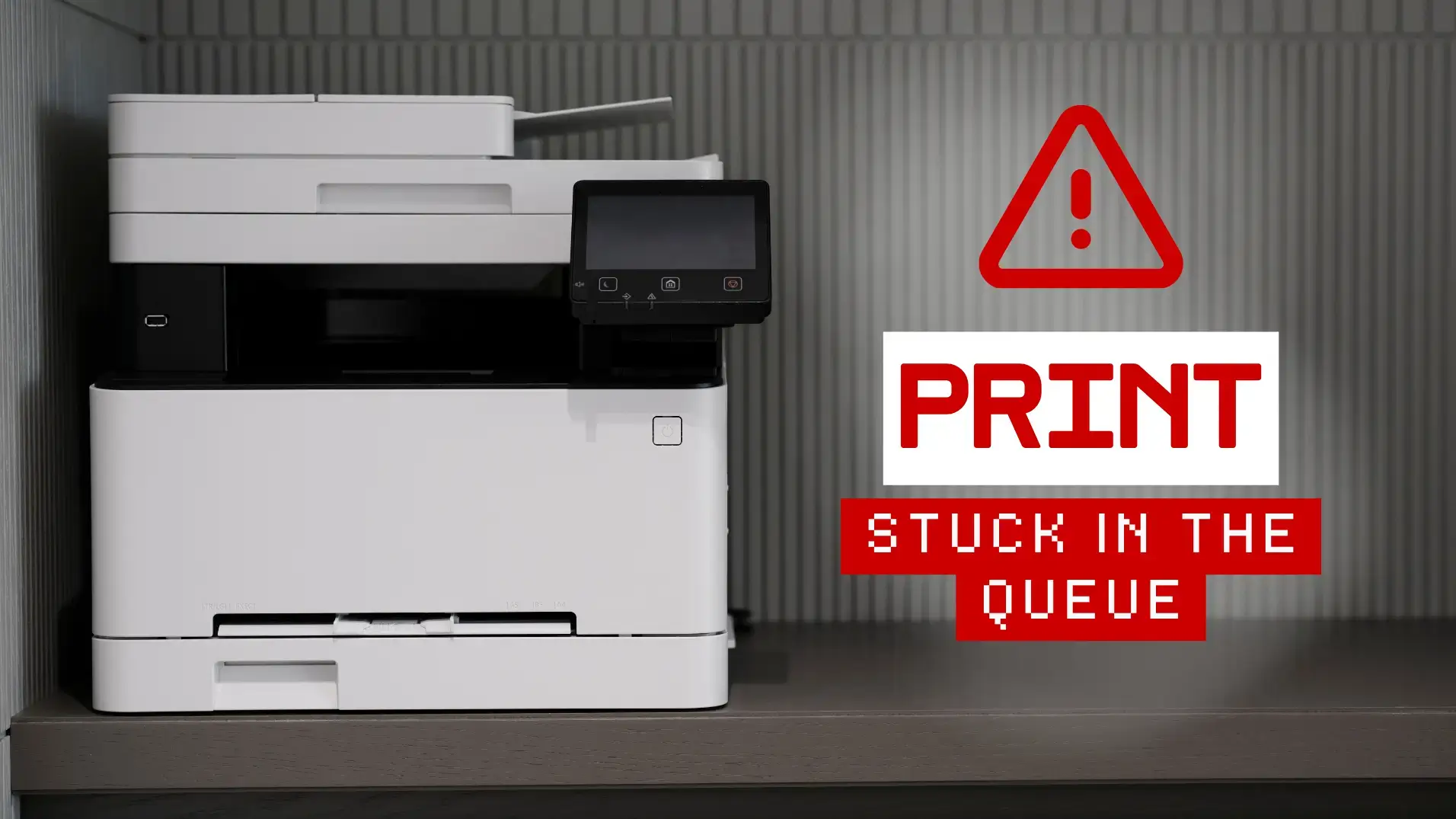
When a print job gets stuck in the queue, it can tie up more than one document. You can’t print the file you need, but you also may not be able to cancel it cleanly enough to free the printer for everyone else. In a busy office, that turns a small print issue into a real bottleneck.
Clearing the queue once is only part of the problem. The bigger question is why the job got stuck in the first place, and whether it was caused by the file, the computer, the print spooler, the network connection, or the printer itself. A restart may get things moving temporarily, but recurring print queue problems usually point to an issue that needs a closer look.
Quick Answer: Why Print Jobs Get Stuck
A print job usually gets stuck because one part of the printing process cannot release, send, or process the file correctly.
- The print queue is paused or backed up: Jobs are waiting in line, but the system is not moving them forward.
- One file is blocking the queue: A large, corrupted, or unsupported file can prevent later jobs from processing.
- The print spooler has stalled: The service that manages print jobs may stop responding.
- The driver or connection is outdated: The computer may be sending the job in a way the printer cannot process reliably.
- The printer cannot accept the job yet: It may be offline, unreachable, out of paper, or waiting for an error to be cleared.
Simple Printer Queue Troubleshooting Steps
Step 1: Check the Printer Before Clearing the Queue
Before you start canceling jobs, make sure the printer can actually receive them. If the device is paused by an error, the queue may stay stuck no matter how many times you try to clear it from your computer.
Start with the printer itself:
- Check the display for a paper jam, open tray, empty paper supply, low toner, or another prompt that needs attention.
- Confirm the printer is online, awake, and showing a ready status.
- If the printer shows an error, resolve that first. The queue often won’t move until the device is ready to accept the next job.
This step matters because a stuck queue isn’t always a computer problem. Sometimes the job is waiting because the printer is asking for something first.
Step 2: Cancel the Stuck Print Job
Once the printer is ready, try canceling the job from the print queue. Give it a minute to clear before sending the file again, especially if the document is large or image-heavy.
Basic steps:
- Open the print queue for the printer you’re using.
- Select the stuck job and choose Cancel or Delete.
- Wait briefly for the queue to update.
- Try printing a simple test document before resending the original file.
If the job won’t cancel, don’t keep clicking the same command over and over. Move to the next step, because the queue or print service may be frozen.
Where to open the print queue:
- Windows: Settings > Bluetooth & devices > Printers & scanners > select your printer > open queue
- Mac: System Settings > Printers & Scanners > select your printer > open queue
Step 3: Restart the Printer and Computer
If canceling the job doesn’t work, restart both the printer and the computer sending the print job. The printer and computer have to communicate with each other, so restarting both can refresh that connection and clear temporary hang-ups without changing any settings.
Start simple:
- Restart the printer and wait until it shows a ready status.
- Restart your computer so the print connection refreshes.
- Print a simple test page before sending the original file again.
That last step matters. If a basic document prints but the original file gets stuck again, the file itself may be the problem, especially if it’s a large PDF, image-heavy document, or file with unusual formatting.
Step 4: If the Job Still Will Not Clear, It May Be a Spooler Issue
If the stuck job won’t cancel and restarting doesn’t clear it, the issue may be with the print spooler. The print spooler is the system service that holds print jobs and sends them to the printer in order.
When the spooler freezes, jobs can get stuck in place even though the printer is ready. At that point, staff may not be able to fix it from the normal print queue window.
For Windows users or admins, restarting the Print Spooler can often clear jobs that won’t cancel. In an office setting, this is usually a good time to involve IT or your support provider, especially if the printer is shared by multiple people or the same issue keeps coming back.
Why the Queue Keeps Getting Stuck
Clearing the queue may fix the immediate problem, but recurring print queue issues usually mean something deeper is interrupting the print process. In an office, that can come from the file, the computer, the shared printer setup, or the network connection behind it.
Common causes include:
- Large or image-heavy files: PDFs, design files, or documents with high-resolution images can take longer to process or fail if the printer runs out of memory.
- Corrupted or unsupported files: One bad file can sit in the queue and block everything behind it.
- Outdated or mismatched drivers: If the computer and printer are not using the right driver, jobs may not process correctly.
- Printer offline or connection changes: If the printer’s network address or port changes, jobs may get stuck because they are being sent to the wrong place.
- Shared printer or print server issues: In offices, one shared setup can affect several users at once.
- Tray or paper setting conflicts: A job may stall if the file asks for a paper size, tray, or paper type the printer is not set up to use.
How Offices Can Prevent Repeat Queue Problems
If this happens once in a while, clearing the queue and restarting the printer may be all you need. If it starts happening regularly, though, your team can get stuck in the same loop: cancel the job, restart the device, try again, and hope it works this time.
That is usually the point where it is worth looking beyond one stuck file. Office printing depends on several pieces working together, including device settings, drivers, user defaults, network connections, and the printer itself. When that setup is inconsistent, the queue can keep failing even when the printer seems fine.
A few simple habits can help reduce repeat problems:
- Keep printer names clear so employees choose the right device.
- Remove duplicate or outdated printer connections from workstations.
- Use consistent default settings for paper size, trays, and color.
- Pay attention to patterns, such as the same printer, file type, workstation, or department having repeated issues.
- Test with a basic document before resending large PDFs or image-heavy files.
When to Call for Help
Calling for support can feel like an extra step, but recurring queue problems often cost more time when everyone keeps trying the same temporary fixes. If employees are restarting devices, canceling jobs, switching computers, or waiting on one person to “free up” the printer again and again, the issue is already interrupting work.
That is usually when it makes sense to have someone look at the larger print setup instead of treating each stuck job as a separate problem. A service provider or IT support team can check the driver, queue, printer connection, network setup, and shared device settings to find out why the issue keeps coming back.
It may be time to call for support if:
- Jobs get stuck repeatedly on the same printer.
- Multiple employees are affected.
- Jobs disappear from the queue but never print.
- Stuck jobs will not cancel or clear normally.
- The issue started after a driver, device, or network change.
- Restarting the printer only fixes the problem temporarily.
Need help with recurring print queue problems?
Harris Business Machines helps businesses troubleshoot printer queue issues, driver problems, and network printing interruptions across Panama City, Fort Walton Beach, Pensacola, Mobile, and surrounding areas. If print jobs keep getting stuck, our team can help identify whether the issue is tied to the printer, driver setup, network connection, or broader print environment.
For offices dealing with ongoing printing interruptions, Managed Print Services and Network and Device Management can help create a more reliable print setup, so your team is not stuck clearing the same queue problem over and over.
Related Articles