HBM | November 11, 2026
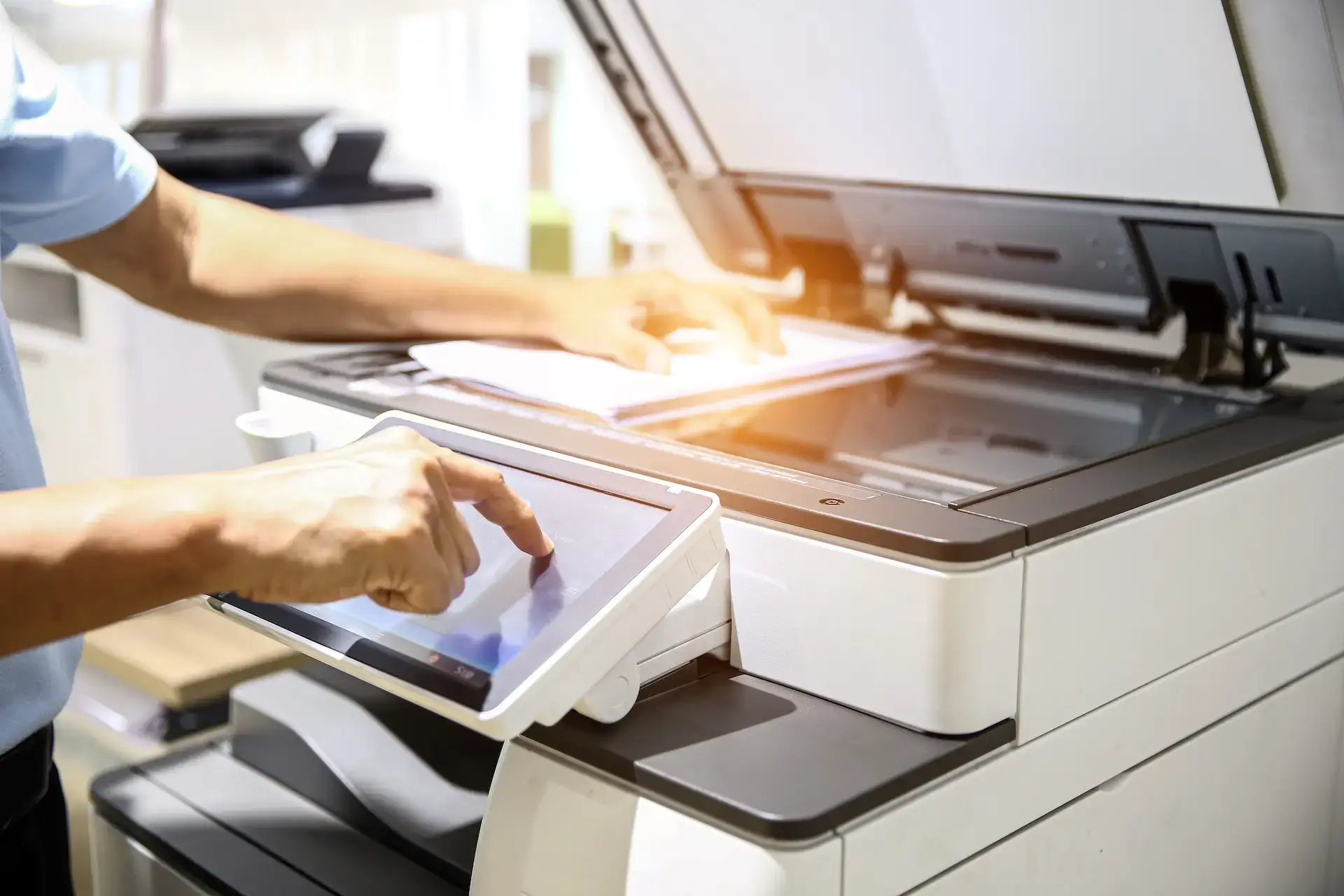
The right business document scanner should fit what your team scans, how much it scans, and where each file needs to go. Start with your real workflow, not a list of technical specifications. A small office that digitizes a few contracts each week needs different equipment than a medical, legal, accounting, or government office processing boxes of records.
If you are learning how to choose a document scanner, evaluate document types, daily volume, feeder capacity, duplex capability, optical character recognition, connectivity, scan destinations, and security. Those details determine whether a scanner saves time or creates another bottleneck.
Start With the Documents and Workflow
Before comparing equipment, collect examples of the paper your team handles. Standard letter-size pages are simple. Receipts, ID cards, bound materials, fragile originals, mixed paper sizes, and wide documents may require different feeding or flatbed options.
Then map where those documents go. Are employees scanning invoices into accounting folders, sending intake forms to a shared drive, archiving signed contracts, or routing records for approval? Harris Business Machines offers commercial scanners for different document types and office needs, but the right choice begins with the process around the device.
This quick guide can narrow the options:
| Office need | Features to prioritize | Likely fit |
| Occasional forms and contracts | Compact size, simple software, automatic feeding | Desktop office document scanner |
| Frequent double-sided paperwork | Single-pass duplex, dependable feeder, batch profiles | Duplex document scanner |
| Shared access across a department | Ethernet or Wi-Fi, user authentication, direct destinations | Network document scanner |
| Searchable archives | Accurate OCR, indexing, file-naming tools, PDF options | Document scanner with OCR |
| Boxes of records or continuous batches | Rated daily volume, speed, large feeder, reliable paper handling | High-volume document scanner |
| Books, photos, fragile pages, or ID materials | Flatbed or specialty media handling | Flatbed or combination scanner |
Match Capacity to Your Real Scan Volume
Scanner speed is usually listed in pages per minute, while two-sided performance may also be shown in images per minute because each side counts as an image. Those numbers matter, but they do not tell the whole story.
Consider how many pages employees scan on a typical day and during seasonal peaks. A tax office, for example, may have a much heavier workload early in the year. Check the recommended daily volume, automatic document feeder capacity, and whether the scanner can handle mixed batches without frequent jams or manual separation.
A faster device with a small feeder may still require constant attention. A slower device with reliable feeding may be enough for a small team. The best document scanner for small business use is the one that handles the normal workload comfortably without paying for capacity the office will not use.
Image quality should also match the work. Standard office text rarely needs the same settings as photos, drawings, or archival originals. Higher resolution can create larger files and slower processing without improving a routine invoice or contract. Ask whether the scanner can save reusable profiles so employees consistently apply the correct color mode, resolution, file format, and destination for each document type.
Decide Whether Duplex and OCR Are Essential
A duplex document scanner captures both sides of a sheet in one pass. It is especially useful for contracts, applications, personnel records, and other forms that may contain information on the back. Even if most pages are single-sided, automatic blank-page removal can keep files clean when double-sided scanning is the default.
OCR stands for optical character recognition. It turns text in a scanned image into content that software can search, select, and sometimes extract. A document scanner with OCR can make an archive much easier to use, but OCR quality depends on the source document, image clarity, and software settings. Faint text, handwriting, unusual layouts, and damaged pages may still require review.
If searchable storage, indexing, routing, or approvals are part of the goal, look beyond the scanner itself. Harris Business Machines can connect document capture with document management solutions that help organize files, control access, and move documents through repeatable workflows.
Compare a Dedicated Scanner With a Multifunction Device
A dedicated scanner makes sense when scanning is a frequent, specialized, or high-volume task. It can give a department a device designed around fast capture, reliable feeding, and scanner-specific software without tying up the office copier.
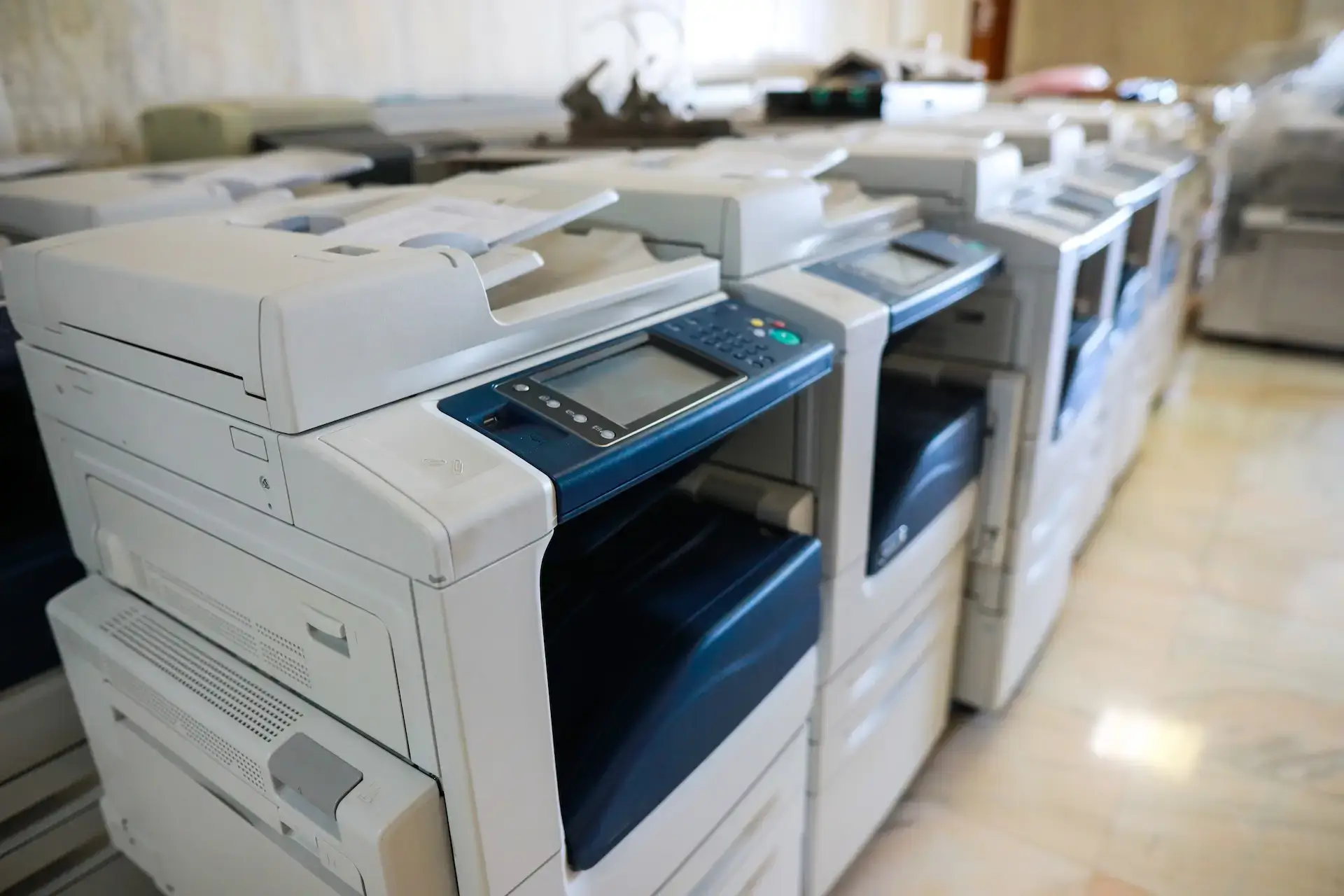
A multifunction printer may be the better choice when employees need one shared device for printing, copying, and moderate scanning. Modern multifunction equipment can support automatic feeders, duplex scanning, address books, network folders, and document-routing features. Compare both options through the lens of staff location, monthly workload, available space, and the number of people who need access. Harris Business Machines’ commercial printers and copiers provide another path when a dedicated scanner would duplicate equipment the office already needs.
Check Connectivity, Destinations, and Security
USB may be enough for one employee at one desk. A network document scanner is more useful when several people need walk-up access or when scans must go directly to approved locations without a dedicated computer.
Ask which destinations the device and software support, such as:
- A local computer or approved network folder.
- Email, when appropriate for the document and security requirements.
- A cloud collaboration platform.
- A document management system.
- A line-of-business application used by accounting, human resources, or another department.
Also review authentication, address books, user permissions, encryption, activity tracking, and file-retention practices. The scanner is an entry point into your information systems, so convenience should not bypass your normal security controls. Harris Business Machines’ frequently asked questions cover common scan destinations and document workflow considerations.
Use a Short Buying Checklist
Before requesting a recommendation, document these requirements:
- The page sizes, paper conditions, and special materials your team scans.
- Average and peak daily page volume.
- The largest batch employees want to load at once.
- Whether documents are commonly double-sided.
- Whether files must be searchable through OCR.
- The people, departments, or locations sharing the device.
- Required scan destinations, file formats, and software integrations.
- Security, access-control, and record-retention needs.
- Available counter space and network connections.
- Service and support expectations after installation.
This list helps separate necessary features from attractive extras. It also makes equipment comparisons more useful because every option is judged against the same workflow.
Get Local Help Comparing Business Scanners
A search for document scanner Panama City FL equipment may produce many models, but a specification sheet cannot show how a device will fit your filing, approval, and security processes. The same is true when comparing business scanners Northwest Florida offices can share across teams or locations.
Harris Business Machines helps businesses match scanners and multifunction equipment to actual document types, volume, destinations, and digital workflows. Contact Harris Business Machines to compare options for your office and plan a scanning setup that employees can use consistently.
Related Articles